

You finished half a course with your work email, then signed up again with your personal one, and now neither account has the full picture. It is one of the questions we get asked most often.
To fix this problem, we introduced linked accounts so you can share your enrolments and progress across multiple accounts. This guide is for anyone who has more than one GraphAcademy account that they would like to treat as one.
You need access to both accounts, because each side has to take part. Have a second browser or a private window ready so you can stay signed in to both.
Find the ID of the account you want to link
The link request needs to identify the other account. It accepts either the user ID or the full profile URL.
Sign in to the second account and open its public profile page. The URL looks like this:
https://graphacademy.neo4j.com/u/<user-id>Copy either the whole URL or just the ID after /u/. Both work.
Open the Linked Accounts page
Sign in to the first account. Open the user menu in the top right and choose Linked Accounts.
Send the link request
Under Link to another account, paste the profile URL or user ID into the Profile URL or user ID field.
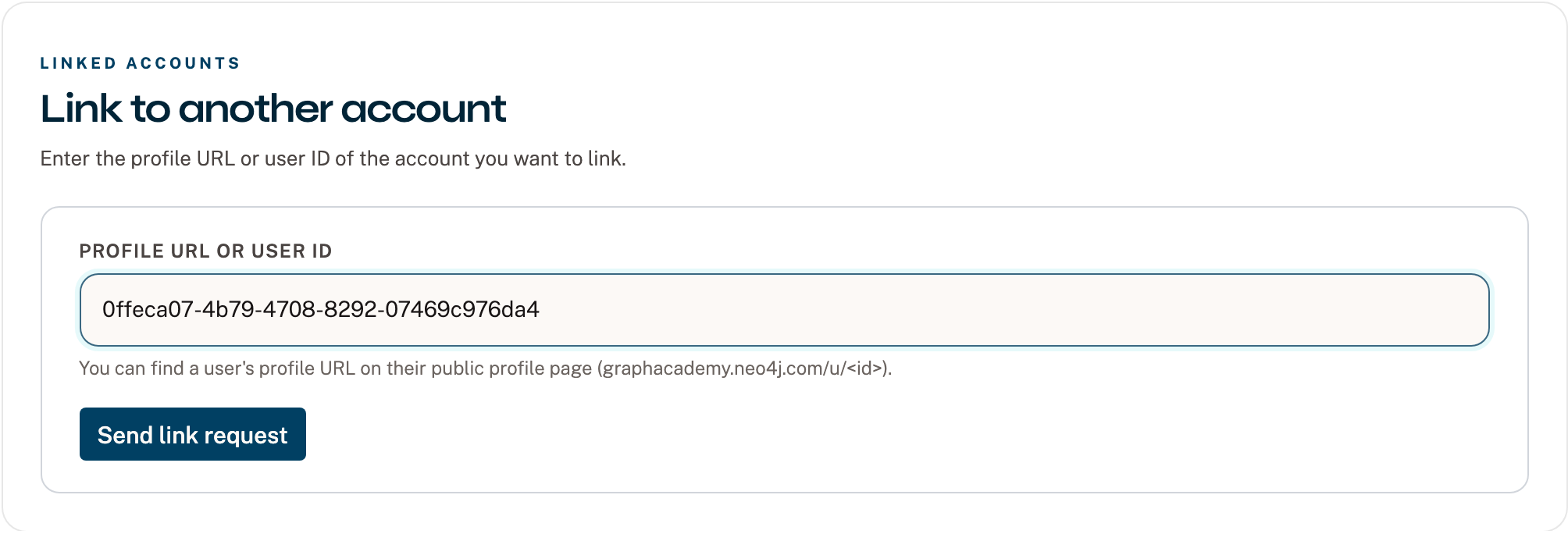
Select Send link request. The form confirms that the request is on its way.
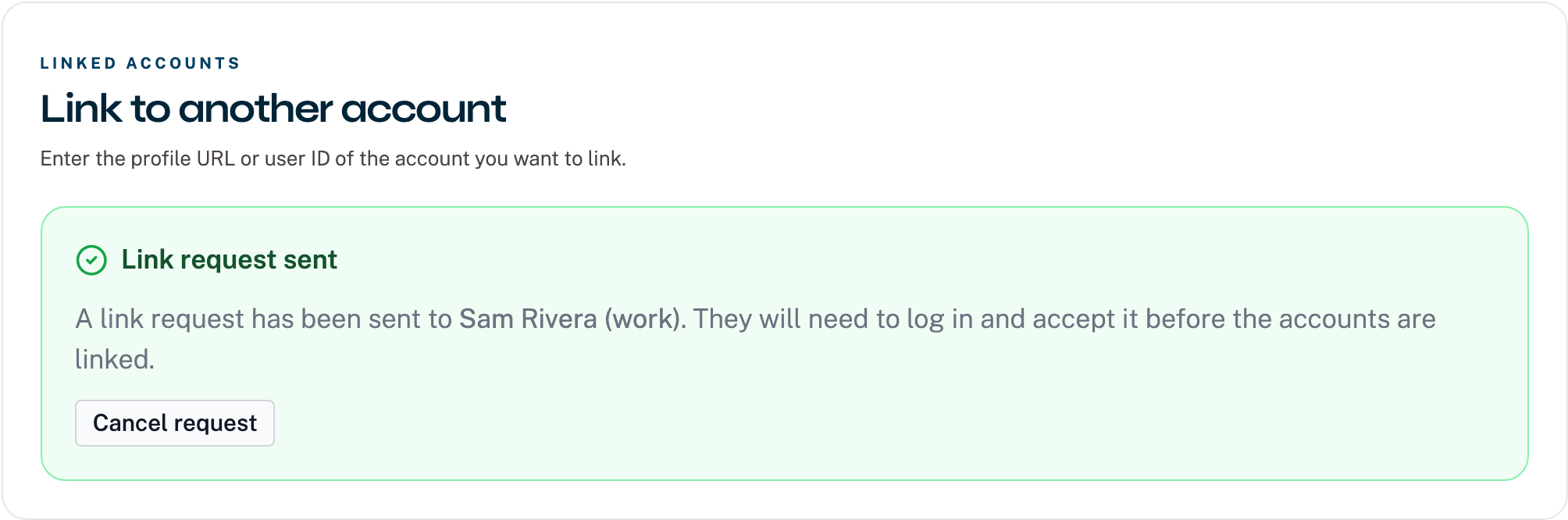
Nothing is linked yet. The other account has to accept. If you pasted the wrong ID, use Cancel request and start again.
Accept the request from the other account
Sign in to the second account and open Linked Accounts. The request appears under Incoming requests, showing the name and email of the account that sent it.
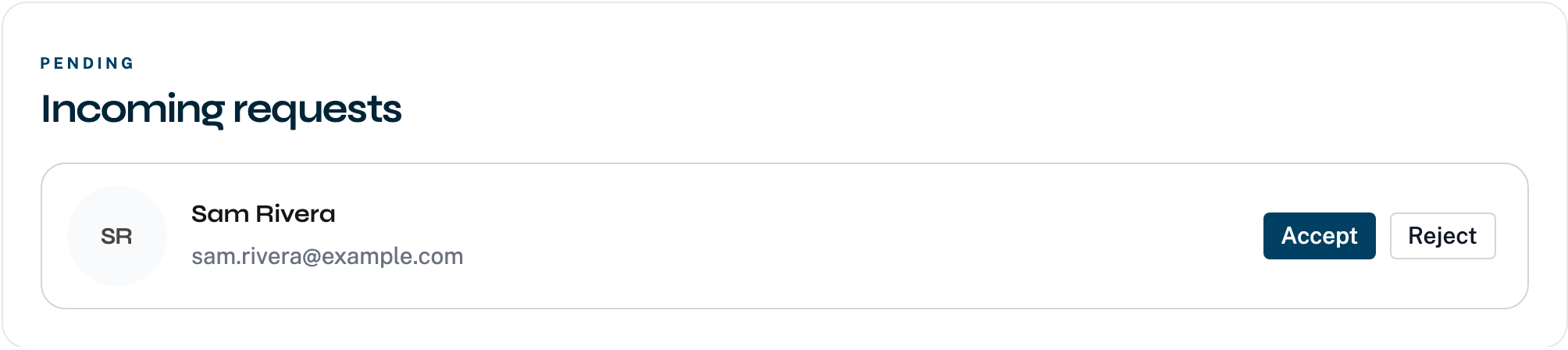
Select Accept to continue. Select Reject if you do not recognise the sender.
Resolve enrolment conflicts
If both accounts are enrolled in the same course, GraphAcademy cannot keep both copies of that enrolment. It asks you to choose.
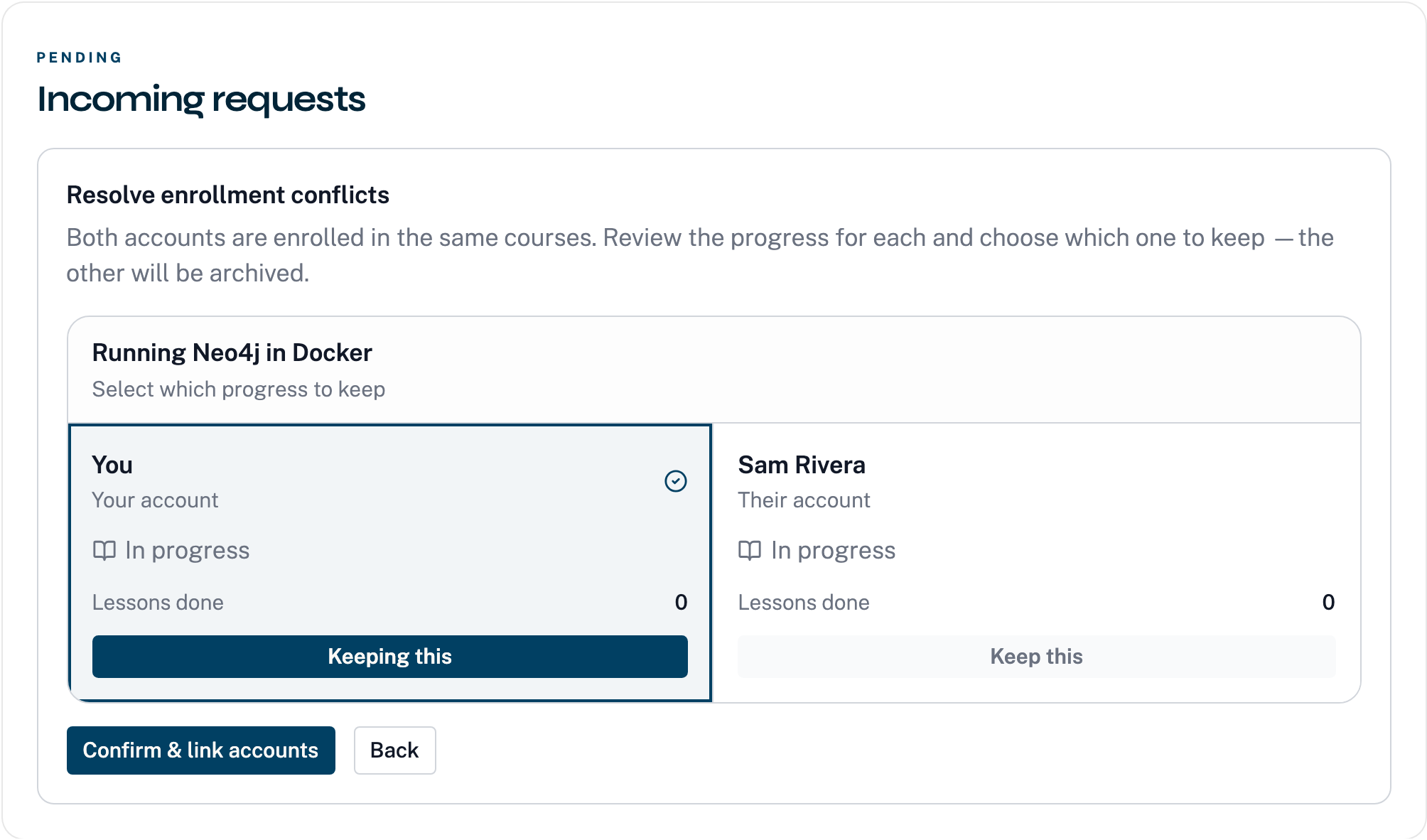
Each conflicting course shows the progress on both sides, including lessons completed and whether the course is finished. Select the side you want to keep. The other enrolment is archived.
The screen defaults to You, the account you are signed in to. If the other account is further along, select it instead. Then select Confirm & link accounts.
Choose the enrolment with more completed lessons, or the one that is already marked as completed. Archiving a completed enrolment in favour of one you barely started means redoing work.
If the accounts have no courses in common, this step does not appear and the accounts link straight away.
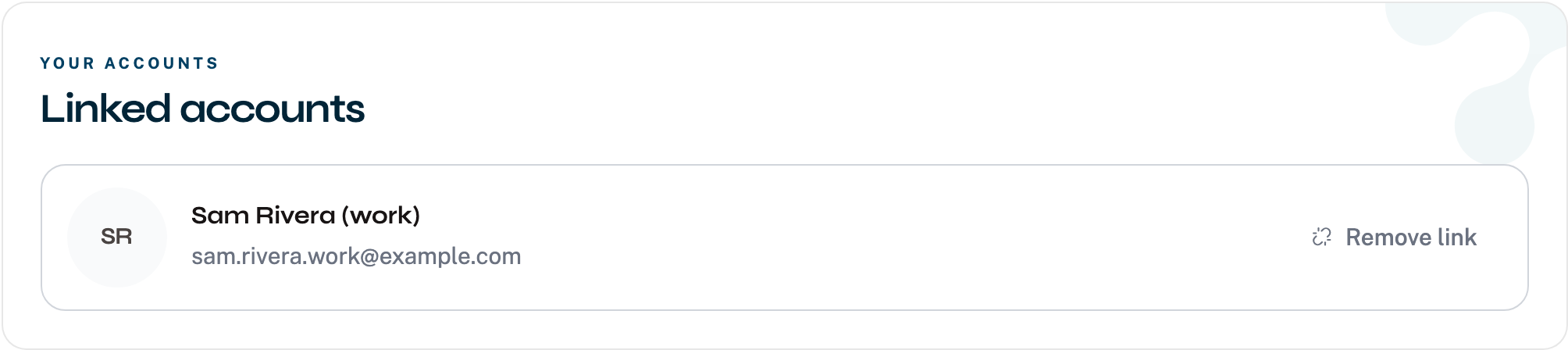
Remove a link
Links are not permanent. Select Remove link next to a linked account to ask for removal. As with linking accounts, you will need to confirm the removal request from the second account using the Confirm removal button.
Once your accounts are linked, pick up where you left off. Open your courses and carry on from the last lesson you completed on either account.
No access to your account?
If you no longer have access to an account, for example an old work account, find the profile ID of the old account and initiate the request. Once you have done so, email us at graphacademy@neo4j.com with proof of ownership of both accounts and we will validate and approve the merge.
Comments (0)
Loading comments...