In this lesson, you will learn how to add a new card to your dashboard and connect it to a filter.
AI-generated cards
You can use natural language to add a card to your dashboard. Dashboards will use AI to generate a query based on your description and create a card for you.
-
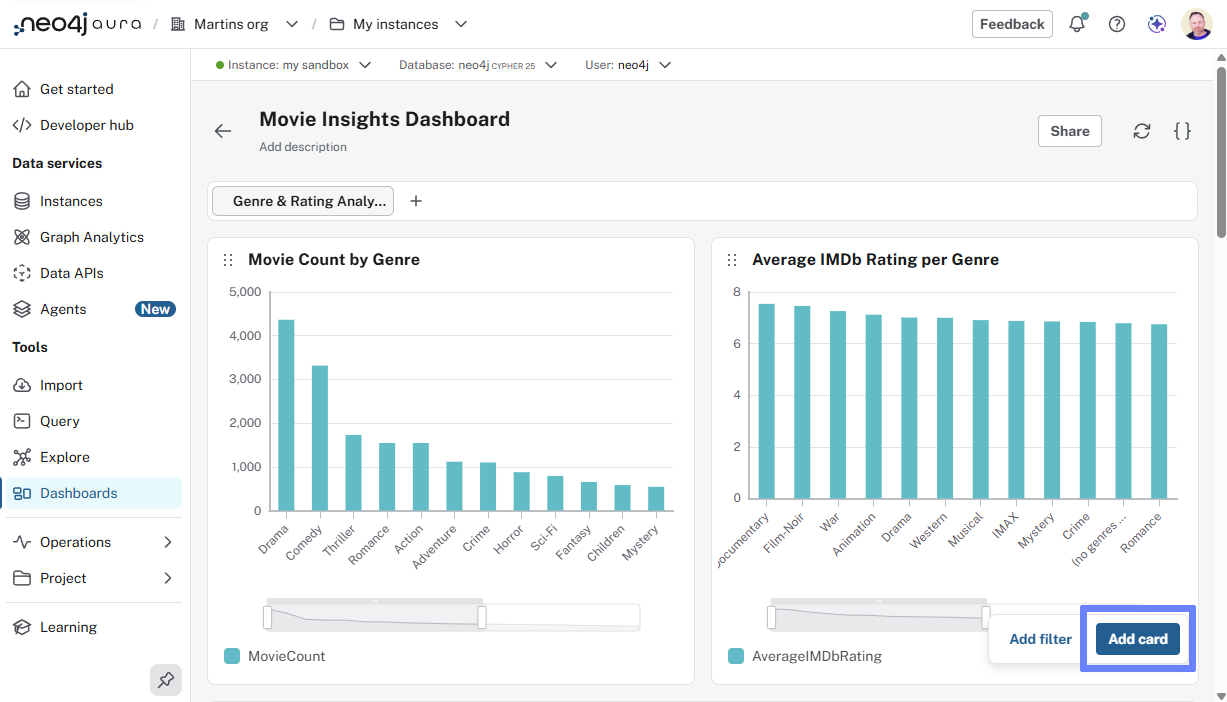
Click Add a card
-
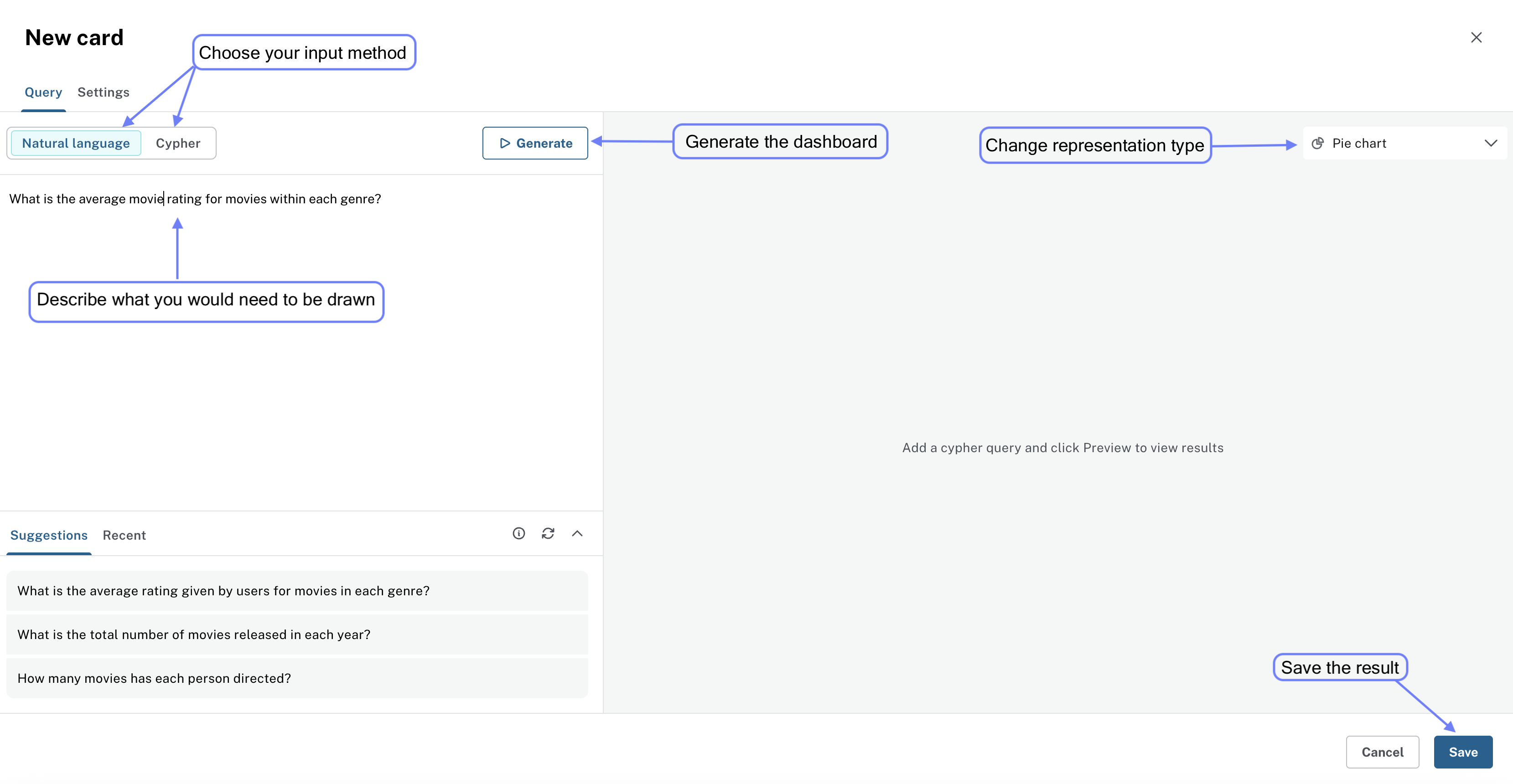
Use natural language to describe the card you want to add. For example, Top 10 user rated movies.
-
Generate the card, review the results, and Save it to your dashboard.
The new card will be added to the bottom of your dashboard. You can drag it to a different position using the six-dot handle.
Cypher-driven graph card
You can have greater control over a cards data by writing your own Cypher query.
-
Add a card, set Visualization type to Graph.
-
Add the Cypher statement that returns a graph of movies 'Tom Hanks' has acted in:
MATCH (p:Person)-[r:ACTED_IN]->(m:Movie)
WHERE p.name = 'Tom Hanks'
RETURN p,r,m
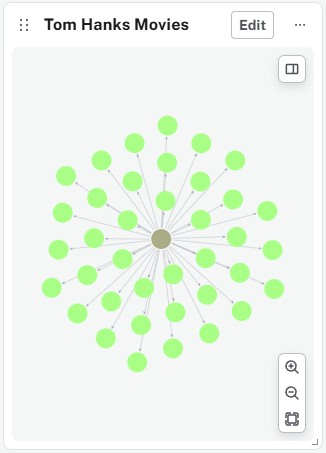
Graph cards will display the nodes and relationships returned by your query.
Editing cards
You can edit any card by hovering over it and using the edit option.
You can modify any aspect of the card, including the title, query, and visualization type.
Add a filter
The graph card you just created can be connected to a filter, allowing you to change the actor name and see their movies.
-
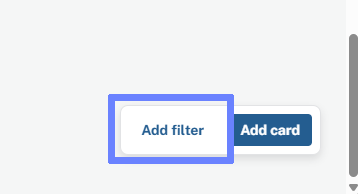
Add a filter to your dashboard.
-
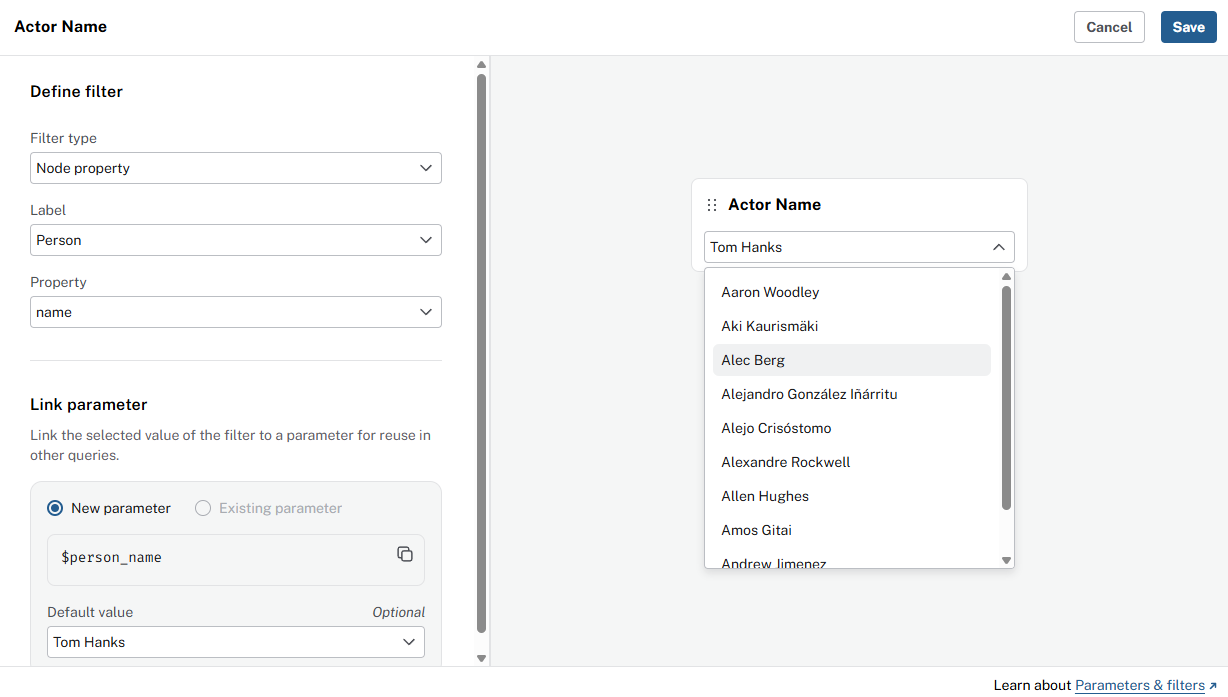
Create a new filter:
-
Name:
Actor name -
Type:
Node property -
Label:
Person -
Property:
nameA new parameter, that you can use in your Cypher queries,
$person_name, will be created for you.
-
-
The new filter will be added to your dashboard. You can move it using the six-dot handle.
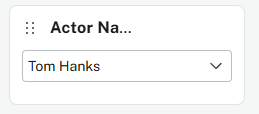
To use the filter, you need to connect it to your graph card by using the $person_name parameter in your Cypher query:
-
Edit the graph card you created earlier.
-
Update the Cypher to use the new parameter:
cypherMATCH (p:Person)-[r:ACTED_IN]->(m:Movie) WHERE p.name = $person_name RETURN p,r,m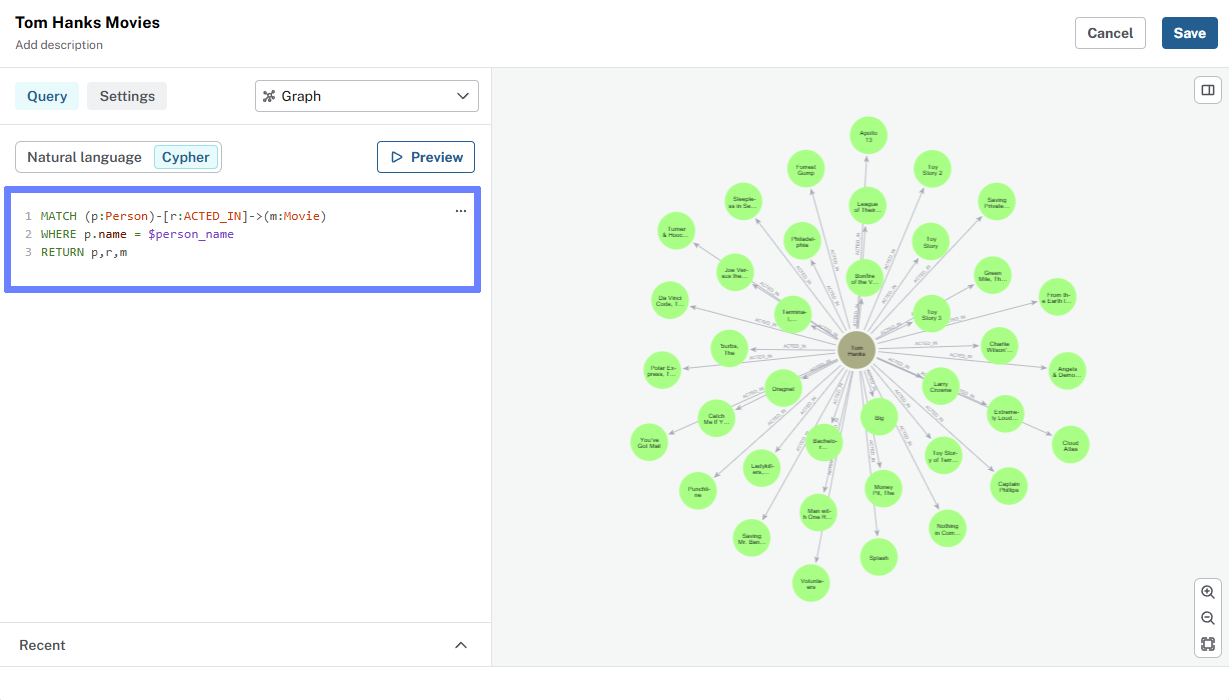
Styling graph cards
You can customize the node size, colors, and captions on graph cards.
Edit the card and goto the Settings tab.
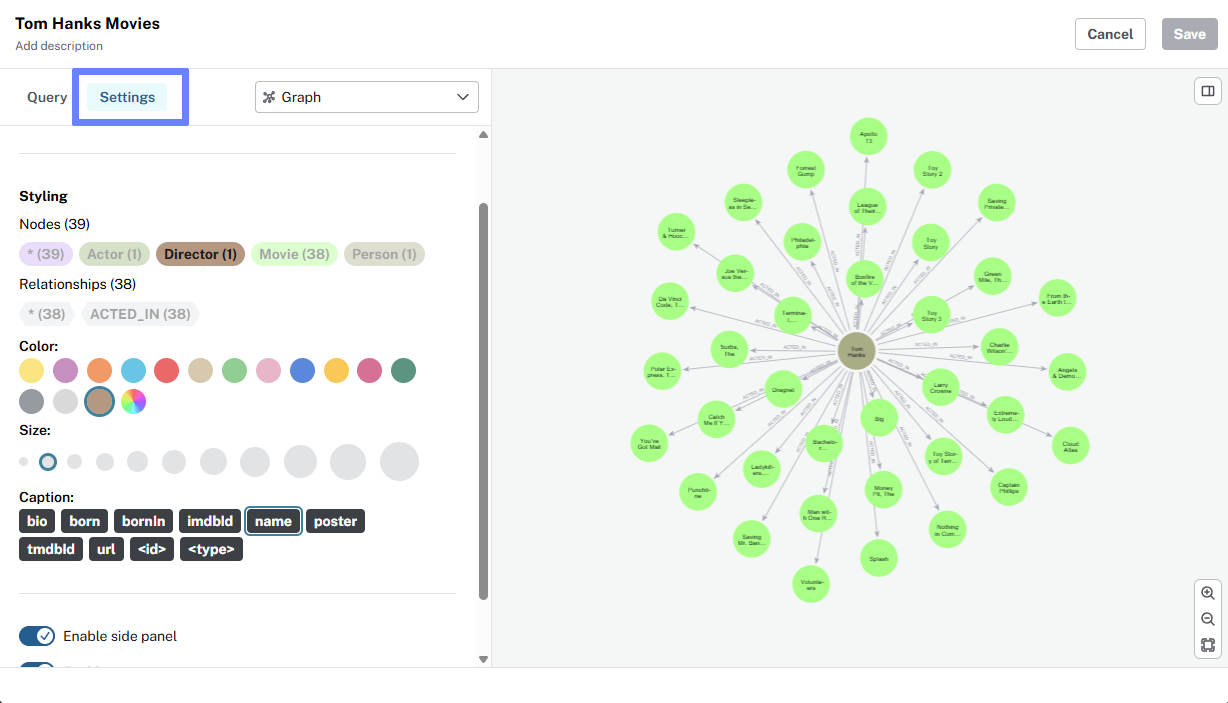
Congratulations, you have added 2 cards to your dashboard, one with AI and one with Cypher, and connected a filter to a parameter in your card.
Check your understanding
Creating a card with AI
You want a card that shows movies by genre and their average ratings. What do you give the AI in the card editor to get that card?
-
❏ A complex Cypher query with multiple JOINs
-
✓ A natural language description of what you want to visualize
-
❏ Additional software installation
-
❏ Multiple database instances
Hint
The card editor’s AI takes a natural language description. Describe what you want, such as "movies by genre and average ratings"; the AI generates the Cypher and the card.
Solution
A natural language description of what you want to visualize.
In the card editor, describe the insight in plain language, such as "movies by genre and their average ratings." The AI generates the Cypher and the card. For precise control you can also write Cypher directly in the Query field.
Summary
You added cards with AI and Cypher, edited them, and connected a filter to a parameter.
In the next lesson, you will learn how to:
-
Organize dashboard structure and create dashboard pages
-
Customize card styling
-
Choose visualization types for metrics